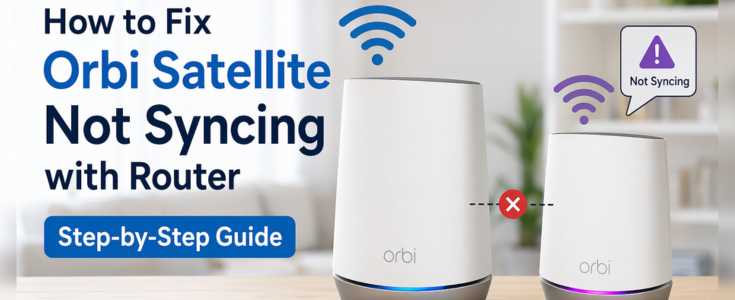
How to Fix Orbi Satellite Not Syncing with Router (Step-by-Step Guide)
The Netgear Orbi system is known for delivering seamless WiFi coverage using a mesh network. However, many users face a common issue-Orbi satellite not syncing with router. When this happens, your satellite fails to connect, resulting in weak signals, dead zones, or complete loss of connectivity.
If your Orbi satellite is not connecting or showing a magenta light, don’t worry. This detailed guide will walk you through step-by-step solutions to fix the problem and restore your network quickly.
What Does “Orbi Satellite Not Syncing” Mean?
When your Orbi satellite fails to sync, it cannot communicate with the main router. This leads to:
- Poor or no WiFi coverage in certain areas
- Satellite showing offline in the Orbi app
- LED light turning purple, amber, or blinking
Typically, a blue LED means successful sync, while amber or magenta indicates issues
Common Reasons Behind Orbi Satellite Not Syncing
Before jumping into solutions, it’s important to understand the root causes:
- Incorrect Placement: If the satellite is placed too far from the router, syncing may fail.
- WiFi Interference: Devices like microwaves, cordless phones, or thick walls can block signals.
- Firmware Issues: Outdated firmware can prevent proper communication between devices.
- Improper Sync Process: Missing a step during setup can result in syncing failure.
- Power or Hardware Glitches: Loose cables or temporary bugs can disrupt the connection.
- Network Configuration Errors: Incorrect settings in the Orbi dashboard can also cause issues.
How to Fix Orbi Satellite Not Syncing with Router
Follow these proven troubleshooting steps to resolve the issue:
Step 1: Place Satellite Close to Router
During the syncing process, ensure the satellite is within 10–15 feet of the router.
Tips:
- Keep both devices in the same room initially
- Avoid placing near metal objects or thick walls
- Move it later after successful sync
Step 2: Check Power Supply
Make sure both devices are powered on properly.
What to do:
- Verify power cables are securely connected
- Check LED lights are active
- Restart the power switch if needed
Step 3: Perform Manual Sync
Manual syncing is the most effective solution.
Steps to sync Orbi satellite:
- Press the Sync button on the router
- Within 2 minutes, press the Sync button on the satellite
- Wait for LED indication
LED Meaning:
- Blue → Successful connection
- Amber → Weak signal
- Magenta → Sync failed
Step 4: Restart Your Devices
Sometimes, a simple reboot can fix temporary glitches.
How to restart:
- Turn off router and satellite
- Unplug both devices
- Wait 60 seconds
- Turn on router first, then satellite
Step 5: Update Firmware
Outdated firmware is a major reason behind syncing issues.
Steps:
- Log in to Orbi admin panel (orbilogin.net)
- Check for firmware updates
- Update both router and satellite
This ensures compatibility and smooth communication.
Step 6: Reset the Orbi Satellite
If syncing still fails, perform a factory reset.
Steps to reset:
- Locate the reset button on the satellite
- Use a pin or paperclip
- Hold for 10-15 seconds until LED blinks
After resetting, try syncing again.
Step 7: Reduce WiFi Interference
Interference can block signals between router and satellite.
Avoid placing devices near:
- Microwave ovens
- Bluetooth devices
- Baby monitors
- Thick concrete walls
Step 8: Check Ethernet Backhaul (If Used)
If you are using a wired connection:
- Ensure Ethernet cable is properly connected
- Try switching cables
- Check ports for damage
Step 9: Use Orbi App for Setup
The Orbi app simplifies syncing and setup.
Benefits:
- Step-by-step instructions
- Real-time device detection
- Easy troubleshooting
Step 10: Reconfigure Network Settings
Incorrect settings may cause syncing failure.
Fix this by:
- Logging into admin dashboard
- Removing old satellite entries
- Adding satellite again
Advanced Fixes for Persistent Issues
If none of the above solutions work, try these advanced methods:
- Factory Reset Entire System: Reset both router and satellite and set up from scratch.
- Check Compatibility: Ensure your satellite model is compatible with your Orbi router.
- Update Both Devices Together: Mismatch in firmware versions can cause syncing failure.
- Change Wireless Channel: Switch to a less crowded channel to reduce interference.
Tips to Prevent Orbi Sync Issues
- Always keep firmware updated
- Avoid placing devices too far apart
- Use proper sync steps during setup
- Restart devices occasionally
- Keep network environment interference-free
When to Contact Support
If your Orbi satellite still does not sync, consider contacting support if:
- Satellite shows constant magenta light
- Device not detected in Orbi app
- Hardware seems faulty
Conclusion
Fixing the Orbi satellite not syncing with router issue is usually simple when you follow the right steps. From proper placement to firmware updates and manual syncing, most problems can be resolved within minutes.
By carefully following this step-by-step guide, you can restore your Orbi network and enjoy uninterrupted WiFi coverage across your home or office.