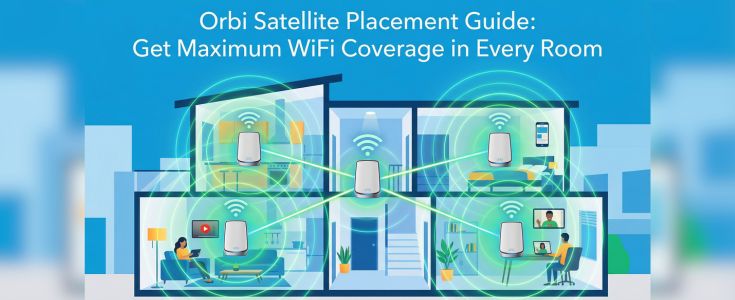
Orbi Satellite Placement Guide: Get Maximum WiFi Coverage in Every Room
Getting the best performance from your Orbi mesh system isn’t just about setup-it’s about proper placement. Even the most advanced WiFi system can underperform if satellites are placed incorrectly. In this guide, you’ll learn how to position your Orbi satellite for maximum coverage, eliminate dead zones, and optimize your network using tools like orbilogin and the orbi app.
Why Orbi Satellite Placement Matters
Orbi satellites extend your WiFi coverage, but placement directly affects:
- Signal strength
- Internet speed
- Network stability
- Device connectivity
Poor placement can lead to weak signals, buffering, and connection drops.
Ideal Placement Strategy
The key to optimal coverage is balance-not too close, not too far.
General Rule:
Place your Orbi satellite halfway between the router and the area with weak signal.
This ensures the satellite receives a strong signal and extends it effectively.
Understanding Signal Strength
When placing your satellite, consider:
- Strong signal = better performance
- Weak signal = slow speeds
Use the LED indicators on your satellite:
- Blue: Excellent connection
- Amber: Fair connection
- Magenta: Poor or no connection
Best Locations to Place Orbi Satellites
Central Locations:
- Place satellites in open, central areas
- Avoid corners or isolated rooms
Elevated Positions:
- Place on shelves or tables
- Avoid placing directly on the floor
Line of Sight:
- Keep minimal obstacles between router and satellite
Where NOT to Place Your Satellite
Avoid these locations:
- Behind thick walls or concrete
- Near metal objects
- Inside cabinets or closed spaces
- Near microwaves or electronics
These can block or interfere with WiFi signals.
Use Orbi App for Placement Optimization
The orbi app makes placement easier with real-time feedback.
Steps:
- Open the orbi app
- Check signal strength of your satellite
- Move the satellite if needed
- Confirm optimal connection
The app helps you find the perfect spot quickly.
Optimize Settings via Orbi Login
You can also fine-tune your network through orbilogin.
How:
- Access orbilogin.net
- Log in to your dashboard
- Check connected devices
- Monitor signal strength and performance
This helps ensure your placement is working effectively.
Placement Tips for Different Home Sizes
Small Homes (1–2 Rooms)
- One router may be enough
- Place centrally for full coverage
Medium Homes (2–3 Bedrooms)
- Use one satellite
- Place midway between router and weak zone
Large Homes (Multi-floor)
- Use multiple satellites
- Place one on each floor
- Avoid stacking directly above each other
Testing Your WiFi Coverage
After placement:
- Walk around your home with your phone
- Check signal strength in each room
- Run speed tests
- Adjust satellite position if needed
Troubleshooting Placement Issues
Weak Signal in Some Rooms
- Move satellite closer to router
- Avoid obstacles
Satellite Not Connecting
- Re-sync satellite
- Check placement distance
App Not Showing Correct Status
- Restart router and satellite
- Reconnect app
Pro Tips for Maximum Coverage
- Use multiple satellites for large spaces
- Keep firmware updated
- Avoid interference sources
- Regularly check network via orbi app
- Monitor performance through orbilogin
Common Mistakes to Avoid
- Placing satellite too far from router
- Keeping it too close (no extension benefit)
- Ignoring LED indicators
- Blocking signal with furniture
- Not testing coverage after placement
Final Thoughts
Proper Orbi satellite placement is the key to unlocking full WiFi coverage in your home. By positioning your satellites strategically and using tools like orbilogin and the orbi app, you can eliminate dead zones and enjoy seamless internet in every room.
Take the time to test and adjust your setup-because even small changes in placement can make a big difference in performance.